Category: VPN

Oct 28

Wireguard VPN between Azure and OCI hosts

Wireguard test between Azure and Oracle OCI hosts

REF: https://www.wireguard.com/

Azure VM setup

Ubuntu 18.04.5 LTS

root@wireguard-az:~# dig +short myip.opendns.com @resolver1.opendns.com
*IPAddress*
root@wireguard-az:~# apt install wireguard

root@wireguard-az:~# wg version
wireguard-tools v1.0.20200513 - https://git.zx2c4.com/wireguard-tools/

root@wireguard-az:~# umask 077
root@wireguard-az:~# wg genkey > privatekey
root@wireguard-az:~# wg pubkey < privatekey > publickey
root@wireguard-az:~# ip link add wg0 type wireguard
root@wireguard-az:~# ip addr add 10.0.0.1/24 dev wg0
root@wireguard-az:~# wg set wg0 private-key ./privatekey
root@wireguard-az:~# ip link set wg0 up

root@wireguard-az:~# ip addr
1: lo:  mtu 65536 qdisc noqueue state UNKNOWN group default qlen 1000
    link/loopback 00:00:00:00:00:00 brd 00:00:00:00:00:00
    inet 127.0.0.1/8 scope host lo
       valid_lft forever preferred_lft forever
    inet6 ::1/128 scope host 
       valid_lft forever preferred_lft forever
2: eth0:  mtu 1500 qdisc mq state UP group default qlen 1000
    link/ether 00:0d:3a:5d:89:a7 brd ff:ff:ff:ff:ff:ff
    inet 10.1.1.4/24 brd 10.1.1.255 scope global eth0
       valid_lft forever preferred_lft forever
    inet6 fe80::20d:3aff:fe5d:89a7/64 scope link 
       valid_lft forever preferred_lft forever
3: wg0:  mtu 1420 qdisc noqueue state UNKNOWN group default qlen 1000
    link/none 
    inet 10.0.0.1/24 scope global wg0
       valid_lft forever preferred_lft forever

root@wireguard-az:~# wg show
interface: wg0
  public key: *redacted*
  private key: (hidden)
  listening port: 43971

root@wireguard-az:~# wg set wg0 peer *redacted* allowed-ips 10.0.0.2/32 endpoint *IPAddress*:40181

root@wireguard-az:~# wg show
interface: wg0
  public key: *redacted*
  private key: (hidden)
  listening port: 43971

peer: *redacted*
  endpoint: *IPAddress*:40181
  allowed ips: 10.0.0.2/32
  transfer: 0 B received, 3.32 KiB sent

NOTE: iptables on this server don't need adjustment it is open already

root@wireguard-az:~# ping 10.0.0.2 -c 1
PING 10.0.0.2 (10.0.0.2) 56(84) bytes of data.
64 bytes from 10.0.0.2: icmp_seq=10 ttl=64 time=31.7 ms

NOTE: open Azure Security Rule for port we are running on
310 wg 43971 Any IPAddress/32 Any

Oracle OCI

Ubuntu 20.04.1 LTS

root@usph-vmli-do01:~# dig +short myip.opendns.com @resolver1.opendns.com
*IPAddress*
root@usph-vmli-do01:~# apt install wireguard

root@usph-vmli-do01:~# wg version
wireguard-tools v1.0.20200513 - https://git.zx2c4.com/wireguard-tools/
  • open Security Rule for port we are running on
    No IPAddress/32 TCP All 40181 TCP traffic for ports: 40181
root@usph-vmli-do01:~# umask 077
root@usph-vmli-do01:~# wg genkey > privatekey
root@usph-vmli-do01:~# wg pubkey < privatekey > publickey
root@usph-vmli-do01:~# ip link add wg0 type wireguard
root@usph-vmli-do01:~# ip addr add 10.0.0.2/24 dev wg0
root@usph-vmli-do01:~# wg set wg0 private-key ./privatekey
root@usph-vmli-do01:~# ip link set wg0 up

root@usph-vmli-do01:~# ip addr
2: ens3:  mtu 9000 qdisc pfifo_fast state UP group default qlen 1000
    link/ether 00:00:17:02:8f:09 brd ff:ff:ff:ff:ff:ff
    inet 10.3.1.8/24 brd 10.3.1.255 scope global ens3
       valid_lft forever preferred_lft forever
    inet6 fe80::200:17ff:fe02:8f09/64 scope link 
       valid_lft forever preferred_lft forever
...
20: wg0:  mtu 1420 qdisc noqueue state UNKNOWN group default qlen 1000
    link/none 
    inet 10.0.0.2/24 scope global wg0
       valid_lft forever preferred_lft forever

root@usph-vmli-do01:~# wg show
interface: wg0
  public key: *redacted*
  private key: (hidden)
  listening port: 40181

root@usph-vmli-do01:~# wg set wg0 peer *redacted* allowed-ips 10.0.0.1/32 endpoint *IPAddress*:43971

root@usph-vmli-do01:~# wg show
interface: wg0
  public key: *redacted*
  private key: (hidden)
  listening port: 40181

peer: *redacted*
  endpoint: *IPAddress*:43971
  allowed ips: 10.0.0.1/32

NOTE: iptables need adjustment port is not open

root@usph-vmli-do01:~# iptables -L --line-numbers
Chain INPUT (policy ACCEPT)
num  target     prot opt source               destination         
1    ACCEPT     all  --  anywhere             anywhere             state RELATED,ESTABLISHED
2    ACCEPT     icmp --  anywhere             anywhere            
3    ACCEPT     all  --  anywhere             anywhere            
4    ACCEPT     udp  --  anywhere             anywhere             udp spt:ntp
5    ACCEPT     tcp  --  anywhere             anywhere             tcp dpt:http-alt state NEW,ESTABLISHED
6    ACCEPT     tcp  --  anywhere             anywhere             tcp dpt:https state NEW,ESTABLISHED
7    ACCEPT     tcp  --  anywhere             anywhere             tcp dpt:http state NEW,ESTABLISHED
8    ACCEPT     tcp  --  anywhere             anywhere             state NEW tcp dpt:ssh
9    REJECT     all  --  anywhere             anywhere             reject-with icmp-host-prohibited
...

root@usph-vmli-do01:~# iptables -I INPUT 5 -p tcp -m tcp --dport 40181 -m state --state NEW,ESTABLISHED -j ACCEPT

root@usph-vmli-do01:~# iptables -L --line-numbers
Chain INPUT (policy ACCEPT)
num  target     prot opt source               destination         
1    ACCEPT     all  --  anywhere             anywhere             state RELATED,ESTABLISHED
2    ACCEPT     icmp --  anywhere             anywhere            
3    ACCEPT     all  --  anywhere             anywhere            
4    ACCEPT     udp  --  anywhere             anywhere             udp spt:ntp
5    ACCEPT     tcp  --  anywhere             anywhere             tcp dpt:40181 state NEW,ESTABLISHED
6    ACCEPT     tcp  --  anywhere             anywhere             tcp dpt:http-alt state NEW,ESTABLISHED
7    ACCEPT     tcp  --  anywhere             anywhere             tcp dpt:https state NEW,ESTABLISHED
8    ACCEPT     tcp  --  anywhere             anywhere             tcp dpt:http state NEW,ESTABLISHED
9    ACCEPT     tcp  --  anywhere             anywhere             state NEW tcp dpt:ssh
10   REJECT     all  --  anywhere             anywhere             reject-with icmp-host-prohibited

root@usph-vmli-do01:~# ping 10.0.0.1 -c 1
PING 10.0.0.1 (10.0.0.1) 56(84) bytes of data.
64 bytes from 10.0.0.1: icmp_seq=1 ttl=64 time=31.9 ms

ubuntu@usph-vmli-do01:~/.ssh$ ssh ubuntu@10.0.0.1
...
Welcome to Ubuntu 18.04.5 LTS (GNU/Linux 5.4.0-1031-azure x86_64)

 * Documentation:  https://help.ubuntu.com
 * Management:     https://landscape.canonical.com
 * Support:        https://ubuntu.com/advantage

  System information as of Wed Oct 28 17:35:39 UTC 2020
...

Permanent steps

For routing/NAT of hosts behind these, creating /etc/wireguard/ config files, systemd starting etc read more here: https://linuxize.com/post/how-to-set-up-wireguard-vpn-on-ubuntu-20-04/
Comments Off on Wireguard VPN between Azure and OCI hosts
comments

Jun 23

AWS VPN to Libreswan

AWS VPN to Azure VM with Libreswan

NOTE: As of this article AWS Site to Site VPN gateway can generate an Openswan configuration but not Libreswan. This is a test to use Libreswan.

Using an Azure Virtual Machine on the left and AWS VPN gateway on the right but of course can also use Azure VPN service

For reference OCI to Libreswan from a while back

Setup right side in AWS Console

  • Create Customer Gateway > azure-gw01 using Static Routing and specify Azure VM IP Address - Create Virtual Private Gateway az-vpg01 Amazon default ASN
  • Attach VPG to VPC
    For Site-to-Site VPN
  • Create VPN Connection > iqonda-aws-azure pick VPG and CG Routing Static leave all defaults for now and no Static IP Prefixes for the moment
  • Record Tunnel1 IP Address

Setup left side in Azure

Create a Centos VM in Azure

  • Virtual machines > Add
    | test01 | CentOS-based 8.1 | Standard_B1ls 1 vcpu, 0.5 GiB memory ($3.80/month) | AzureUser
    * I used a password for AzureUser and sort out SSH keys after logged in.

  • I used | Standard HDD | myVnet | mySubnet(10.0.0.0/24)

  • record public IP

  • Network add inbound rules for ipsec. I did an all traffic for the AWS endpoint IP address but you want to be more specific on ipsec ports.

software

# cat /etc/centos-release
CentOS Linux release 8.1.1911 (Core) 

# yum install libreswan

# echo "net.ipv4.ip_forward=1" > /usr/lib/sysctl.d/60-ipsec.conf
# sysctl -p /usr/lib/sysctl.d/60-ipsec.conf
net.ipv4.ip_forward = 1

# for s in /proc/sys/net/ipv4/conf/*; do echo 0 > $s/send_redirects; echo 0 > $s/accept_redirects; done

# echo 0 > /proc/sys/net/ipv4/conf/all/rp_filter

# ipsec verify
Verifying installed system and configuration files

Version check and ipsec on-path                     [OK]
Libreswan 3.29 (netkey) on 4.18.0-147.8.1.el8_1.x86_64
Checking for IPsec support in kernel                [OK]
 NETKEY: Testing XFRM related proc values
         ICMP default/send_redirects                [OK]
         ICMP default/accept_redirects              [OK]
         XFRM larval drop                           [OK]
Pluto ipsec.conf syntax                             [OK]
Checking rp_filter                                  [OK]
Checking that pluto is running                      [OK]
 Pluto listening for IKE on udp 500                 [OK]
 Pluto listening for IKE/NAT-T on udp 4500          [OK]
 Pluto ipsec.secret syntax                          [OK]
Checking 'ip' command                               [OK]
Checking 'iptables' command                         [OK]
Checking 'prelink' command does not interfere with FIPS [OK]
Checking for obsolete ipsec.conf options            [OK]

NOTE: skipping firewalld and rules. this instance did not have firewalld enabled and iptables -L is open.

Download openswan config in AWS console to see the PSK

I had issues bringing the tunnel up but after reboot it works

post tunnel UP

  • add static route(s) to VPN
  • check route table for subnet
  • enable subnet association to route table
  • enable route propagation

ping test both ways works...

source

[root@test01 ipsec.d]# cat aws-az-vpn.conf 
conn Tunnel1
        authby=secret
        auto=start
        encapsulation=yes
        left=%defaultroute
        leftid=[Azure VM IP]
        right=[AWS VPN Tunnel 1 IP]
        type=tunnel
        phase2alg=aes128-sha1;modp1024
        ike=aes128-sha1;modp1024
        leftsubnet=10.0.1.0/16
        rightsubnet=172.31.0.0/16

conn Tunnel2
        authby=secret
        auto=add
        encapsulation=yes
        left=%defaultroute
        leftid=[Azure VM IP]
        right=[AWS VPN Tunnel 2 IP]
        type=tunnel
        phase2alg=aes128-sha1;modp1024
        ike=aes128-sha1;modp1024
        leftsubnet=10.0.1.0/16
        rightsubnet=172.31.0.0/16

[root@test01 ipsec.d]# cat aws-az-vpn.secrets 
52.188.118.56 18.214.218.99: PSK "Qgn...............mn"
52.188.118.56 52.3.140.122: PSK "cWu..................87"

Tunnel switch

Although Libreswan can't manage two tunnels to the same right side without something like Quagga at least I did a very quick and dirty switchover script. It works and very minimal pings missed.

[root@test01 ~]# cat switch-aws-tunnel.sh 
#!/bin/bash
echo "Current Tunnel Status"
ipsec status | grep routed

active=$(ipsec status | grep erouted | cut -d \" -f2)
inactive=$(ipsec status | grep unrouted | cut -d \" -f2)

echo "Showing active and inactive in tunnels"
echo "active: $active"
echo "inactive: $inactive"

echo "down tunnels...."
ipsec auto --down $active
ipsec auto --down $inactive

echo "adding tunnels...."
ipsec auto --add Tunnel1
ipsec auto --add Tunnel2

echo "up the tunnel that was inactive before...."
ipsec auto --up $inactive

echo "Current Tunnel Status"
ipsec status | grep routed

Comments Off on AWS VPN to Libreswan
comments

Dec 16

OCI VPN Server PriTunl for clients

Sometimes you need more than a bastion for reaching your cloud resources. Bastions are great for SSH and RDP tunneling but really more limited to admins and administration. Of course site to site can be solved with OCI CPE and tunnels between colo/client networks.

There are several options for VPN servers and I use LibreSwan for testing site to site OCI tenancy VPN tunnels. LibreSwan could also work in a case of many users needing access to cloud resources but it is not easy to administer users etc.

So this time I tried a product called pritunl ( https://pritunl.com/ )

You should be able to use normal OpenVPN and I think even IPsec clients to connect. Pritunl also provide clients but ideally you should just be able to use anything generic.

Admin can easily add users and send an import file which includes your cert etc.. For me this worked well under Linux just using the generic network manager openvpn plugin but I need to verify Windows and Macs also.

https://docs.pritunl.com/docs/installation

$ sudo -s
# tee -a /etc/yum.repos.d/mongodb-org-3.4.repo << EOF
> [mongodb-org-3.4]
> name=MongoDB Repository
> baseurl=https://repo.mongodb.org/yum/redhat/7/mongodb-org/3.4/x86_64/
> gpgcheck=1
> enabled=1
> gpgkey=https://www.mongodb.org/static/pgp/server-3.4.asc
> EOF
[mongodb-org-3.4]
name=MongoDB Repository
baseurl=https://repo.mongodb.org/yum/redhat/7/mongodb-org/3.4/x86_64/
gpgcheck=1
enabled=1
gpgkey=https://www.mongodb.org/static/pgp/server-3.4.asc

# tee -a /etc/yum.repos.d/pritunl.repo << EOF
> [pritunl]
> name=Pritunl Repository
> baseurl=https://repo.pritunl.com/stable/yum/centos/7/
> gpgcheck=1
> enabled=1
> EOF
[pritunl]
name=Pritunl Repository
baseurl=https://repo.pritunl.com/stable/yum/centos/7/
gpgcheck=1
enabled=1

# yum -y install epel-release
[snip]
Complete!

# grep disabled /etc/selinux/config 
#     disabled - No SELinux policy is loaded.
SELINUX=disabled

# gpg --keyserver hkp://keyserver.ubuntu.com --recv-keys 7568D9BB55FF9E5287D586017AE645C0CF8E292A
# gpg --armor --export 7568D9BB55FF9E5287D586017AE645C0CF8E292A > key.tmp; sudo rpm --import key.tmp; rm -f key.tmp
# yum -y install pritunl mongodb-org

# systemctl start mongod pritunl
# systemctl enable mongod pritunl
Created symlink from /etc/systemd/system/multi-user.target.wants/pritunl.service to /etc/systemd/system/pritunl.service.

Connect to web interface...

# firewall-cmd --zone=public --permanent --add-port=12991/udp
success
# systemctl restart firewalld

On VPN Server Removed 0.0.0.0/0 route and add 10.1.0.0/16
Install network-manager-openvpn on my Linux desktop and import file exported on vpn server
Connect to VPN server

# ping 10.1.1.7
PING 10.1.1.7 (10.1.1.7) 56(84) bytes of data.
64 bytes from 10.1.1.7: icmp_seq=1 ttl=63 time=46.4 ms

$ ssh -I /media/ssh-keys/OBMCS opc@10.1.1.7
Last login: Fri Dec 15 16:50:24 2017

Comments Off on OCI VPN Server PriTunl for clients
comments

Oct 30

Network Manager VPN Connections

I have documented previously that the Linux network manager can be used to connect to several different VPN gateways.  There are several network manager plugins available for the different VPN solutions.  The pptp plugin is used frequently but for newer Cisco gateways you should use the network-manager-openconnect-gnome plugin. You should use the network-manager-vpnc plugin to connect to older Cisco gateways.

The vpnc plugin also happens to work for Palo Alto GlobalProtect concentrators.  For the vpnc plugin to work with Palo Alto GlobalProtect gateways you need to:

- Enable X-Auth on your VPN gateway. You will also need the group name and password from the VPN administrator.

- Create a "Cisco compatible" VPN when creating your network manager connection.


Comments Off on Network Manager VPN Connections
comments

Nov 22

OpenVPN with Gnome NetworkManager plug-in

Instructions how to use the OpenVPN plug-in with the Gnome NetworkManager.

Details:

- In this case the OpenVPN server hands out dynamic IP addresses.
- Ubuntu 12.10 64-bit client.

Get your user configuration file:

In a browser visit your OpenVPN server webpage at https://server.domain/
Follow Login > Download “Yourself (user-locked profile)” > Save As client.ovpn
** I renamed the file to client_29.ovpn since I have multiple servers I connect to.

Split client.ovpn into several files:

The Gnome NetworkManager does not like using one big configuration file, although the command line OpenVPN client does work fine with one file (client.ovpn).  For NetworkManager you can break out manually with an editor or as follow. I used my personal home folder to store the files.

sed -n '//,/<\/tls-auth>/p' client_29.ovpn > sitename_ovpn_29tls.key
sed -n '//,/<\/cert>/p' client_29.ovpn > sitename_ovpn_29.crt
sed -n '//,/<\/ca>/p' client_29.ovpn > sitename_ovpn_29ca.cer
sed -n '//,/<\/key>/p' client_29.ovpn > sitename_ovpn_29.key

** After you split the configuration up remember to edit the files and remove the lines containing the open <> and close </> tags.

Install the OpenVPN plugin for NetworkManager:

# aptitude install network-manager-openvpn-gnome

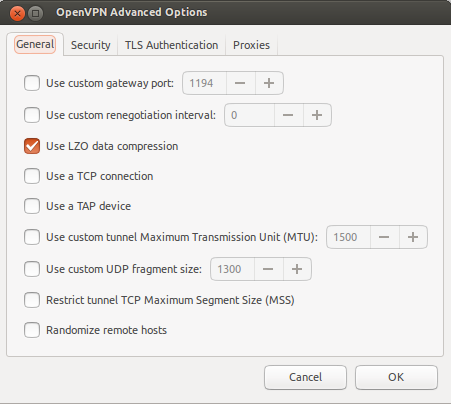
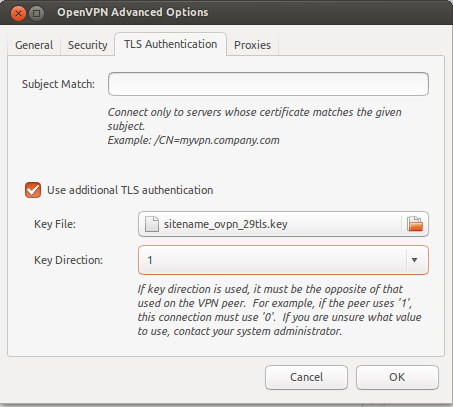
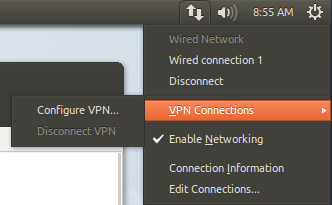
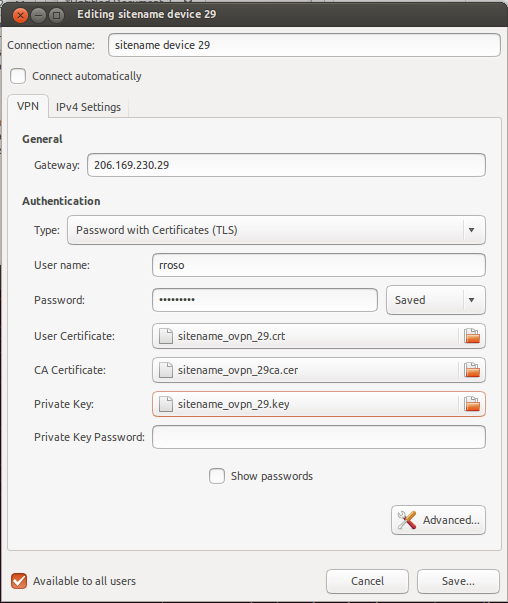
Below are some screen shots showing some configuration settings fro this particular setup. Your mileage may vary depending on how your administrator configured the server.


Add a new VPN Connection in GNOME:


Reference certificates and keys:


General Settings:


TLS Key:

Showing syslog while connecting (snipped):

Nov 22 08:49:42 u12 NetworkManager[660]:  Starting VPN service 'openvpn'...
Nov 22 08:49:43 u12 nm-openvpn[4791]: Control Channel Authentication: using '/home/rrosso/sitename_ovpn_29tls.key' as a OpenVPN static key file
Nov 22 08:49:43 u12 nm-openvpn[4791]: LZO compression initialized
Nov 22 08:49:47 u12 NetworkManager[660]:  IPv4 configuration:
Nov 22 08:49:47 u12 NetworkManager[660]:  Internal Gateway: 172.22.91.1
Nov 22 08:49:47 u12 NetworkManager[660]:  Internal Address: 172.22.91.253
Nov 22 08:49:47 u12 NetworkManager[660]:  Internal Prefix: 24
Nov 22 08:49:48 u12 NetworkManager[660]:  VPN connection 'sitename device 29' (IP Config Get) complete.
Nov 22 08:49:48 u12 NetworkManager[660]:  ((null)): writing resolv.conf to /sbin/resolvconf
Nov 22 08:49:49 u12 dbus[402]: [system] Activating service name='org.freedesktop.nm_dispatcher' (using servicehelper)
Nov 22 08:49:52 u12 nm-openvpn[4791]: Initialization Sequence Completed
Nov 22 08:50:08 u12 ntpdate[4876]: step time server 91.189.94.4 offset 9.301349 sec

Older (pre Ubuntu 12.04) information.  May or may not be useful to you.

How to test a manual connection(no Network Manager plug-in):

rrosso@u10:~$ sudo openvpn --config client.ovpn --script-security 2
Sat Mar 19 10:14:34 2011 OpenVPN 2.1.0 x86_64-pc-linux-gnu [SSL] [LZO2] [EPOLL] [PKCS11] [MH] [PF_INET6] [eurephia] built on Jul 12 2010
Enter Auth Username:rrosso
Enter Auth Password:
...

Older versions of Ubuntu and NetworkManager this was a necessary addition to set DNS:

rrosso@u10:~$ tail -3 client.ovpn
#rrosso added for DNS resolver
up /etc/openvpn/update-resolv-conf
down /etc/openvpn/update-resolv-conf

Several problems I encountered with permissions on older versions:
- NetworkManager: <WARN> vpn_service_watch_cb()
- VPN service 'org.freedesktop.NetworkManager.openvpn' exited with error: 1
- connection_need_secrets_cb()

https://bugs.launchpad.net/ubuntu/+source/network-manager-openvpn/+bug/360818

Debug NetworkManager as follow:
http://live.gnome.org/NetworkManager/Debugging

# OPENVPN_DEBUG=1 /usr/lib/network-manager-openvpn/nm-openvpn-service

http://bugs.debian.org/cgi-bin/bugreport.cgi?bug=527975
https://bugs.launchpad.net/ubuntu/+source/network-manager-vpnc/+bug/360818

** Not sure if tinkering with this next file helped but changed it to look as follow and could at least troubleshoot further after wards.

Permissions problem:

# cat /etc/dbus-1/system.d/nm-openvpn-service.conf
<!DOCTYPE busconfig PUBLIC
"-//freedesktop//DTD D-BUS Bus Configuration 1.0//EN"
"http://www.freedesktop.org/standards/dbus/1.0/busconfig.dtd">
<busconfig>
<policy user="root">
<allow own="org.freedesktop.NetworkManager.openvpn"/>
<allow send_destination="org.freedesktop.NetworkManager.openvpn"/>
</policy>
</busconfig>

** I restored the original file and things are still working

Some older links on DNS resolver and OpenVPN:
http://www.subvs.co.uk/openvpn_resolvconf
http://forums.openvpn.net/topic7109.html

Comments Off on OpenVPN with Gnome NetworkManager plug-in
comments